
Search term waste is the single biggest hidden budget leak in Google Shopping. Your Shopping campaigns don't use keywords. Google decides which searches trigger your ads based on your product feed. That means irrelevant queries are constantly slipping through, and every click on a bad search term is money straight out of your budget. In a typical Shopping account, 15-25% of total spend goes to search terms that will never convert.
The search term report shows you exactly which queries triggered your Shopping ads. It's the single most actionable report for cutting wasted ad spend, yet most advertisers check it once and forget about it. This guide walks you through how to find search term waste, categorize it, and build a negative keyword strategy that keeps your budget focused on queries that actually sell.
What Is the Search Term Report?
The search term report shows the actual queries people typed into Google before clicking your Shopping ad. It's different from keywords because Shopping campaigns don't have keywords. Google matches search queries to your products based on your product titles, descriptions, and other feed attributes.
The problem: you have no direct control over which queries trigger your ads. Unlike Search campaigns where you bid on specific keywords, Shopping campaign optimization relies on two levers:
- Product feed quality: better titles and descriptions lead to better query matching
- Negative keywords: the only way to block specific queries from triggering your ads
You can find the report in Google Ads under Campaigns > Insights and reports > Search terms. Google's search terms report documentation covers the basics of how to access and read the report. Select your Shopping campaign and set a date range of at least 30 days to get meaningful data. For a full walkthrough of Shopping reporting options, see our Google Shopping reporting guide.
Pro Tip
Export the search term report to a spreadsheet for deeper analysis. Google Ads only shows top search terms in the UI. An export gives you the full dataset including long-tail queries that individually spend small amounts but add up fast.
5 Types of Search Term Waste
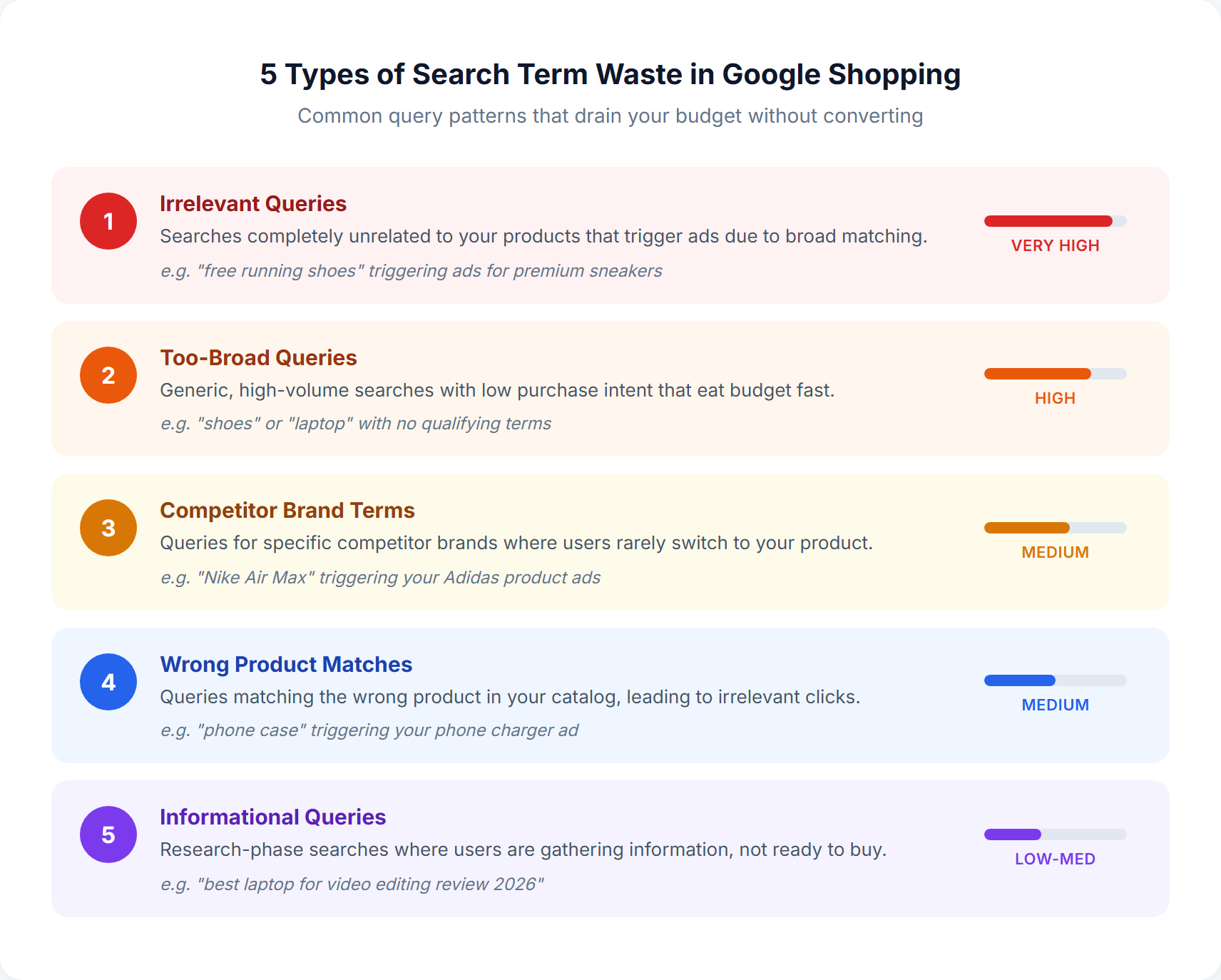
Not all wasted search terms are the same. Understanding the type of waste helps you choose the right negative keyword match type and prioritize which terms to block first.
1. Irrelevant Queries
Searches completely unrelated to your products. These happen when Google's matching algorithm gets it wrong. A "leather wallet" query triggering your leather jacket ad, or "free samples" matching your premium product listing. Block these immediately with negative keywords.
2. Too-Broad Queries
Single-word or very generic searches like "shoes," "laptop," or "dress." These have massive search volume but terrible conversion rates because the intent is unclear. A user searching "shoes" could want running shoes, dress shoes, or kids' shoes. Your specific product rarely matches what they have in mind.
3. Competitor Brand Terms
When someone searches for "Nike Air Max" and clicks your Adidas ad, they almost never convert. They wanted Nike specifically. While there are edge cases where competitor terms can work, in Shopping campaigns the conversion rate on competitor brand queries is typically under 0.5%.
4. Wrong Product Matches
Queries that are relevant to your store but matched to the wrong product. Someone searching "USB-C charger" seeing your USB-C cable ad. The user's intent and your product are misaligned. This is often a product feed issue, and improving titles and descriptions helps Google match the right product.
5. Informational Queries
Research-phase searches where users are comparing, reading reviews, or learning, not buying. Queries like "best laptop for video editing 2026" or "running shoe comparison." These users might buy eventually, but the click today rarely converts. Consider whether the long-term value justifies the spend.
How to Analyze Search Terms Step by Step
Here's a practical workflow for finding and eliminating search term waste. Do this weekly for best results.
Step 1: Pull the Report
In Google Ads, navigate to your Shopping campaign, go to Insights and reports > Search terms, and set the date range to the last 30 days. Download the report as a CSV for spreadsheet analysis.
Step 2: Sort by Cost (Highest First)
The biggest waste is at the top. Sort your search terms by cost descending and focus on the top 50-100 terms first. These account for the majority of your spend and potential waste.
Step 3: Filter for Zero Conversions
Add a filter for conversions = 0. This shows you every search term that cost money but generated nothing. Combined with the cost sort, you now see your most expensive waste. This is the same principle as identifying zero-conversion products, but at the query level.
Step 4: Categorize Each Term
Go through the filtered list and tag each term as one of the five waste types above. This helps you decide the right action:
| Waste Type | Action | Match Type |
|---|---|---|
| Irrelevant queries | Block immediately | Phrase or exact match |
| Too-broad queries | Block the broad term | Exact match (keep qualified versions) |
| Competitor brands | Block the brand name | Phrase match |
| Wrong product match | Fix feed first, then block | Case by case |
| Informational queries | Monitor, block if high cost | Exact match |
Step 5: Calculate Your Waste
Sum up the total cost of all zero-conversion search terms and divide by your total Shopping spend for the same period. This gives you your search term waste percentage, the KPI you'll track over time. If you're above 15%, there's significant room to improve. Well-optimized accounts sit below 10%.
Building a Negative Keyword Strategy
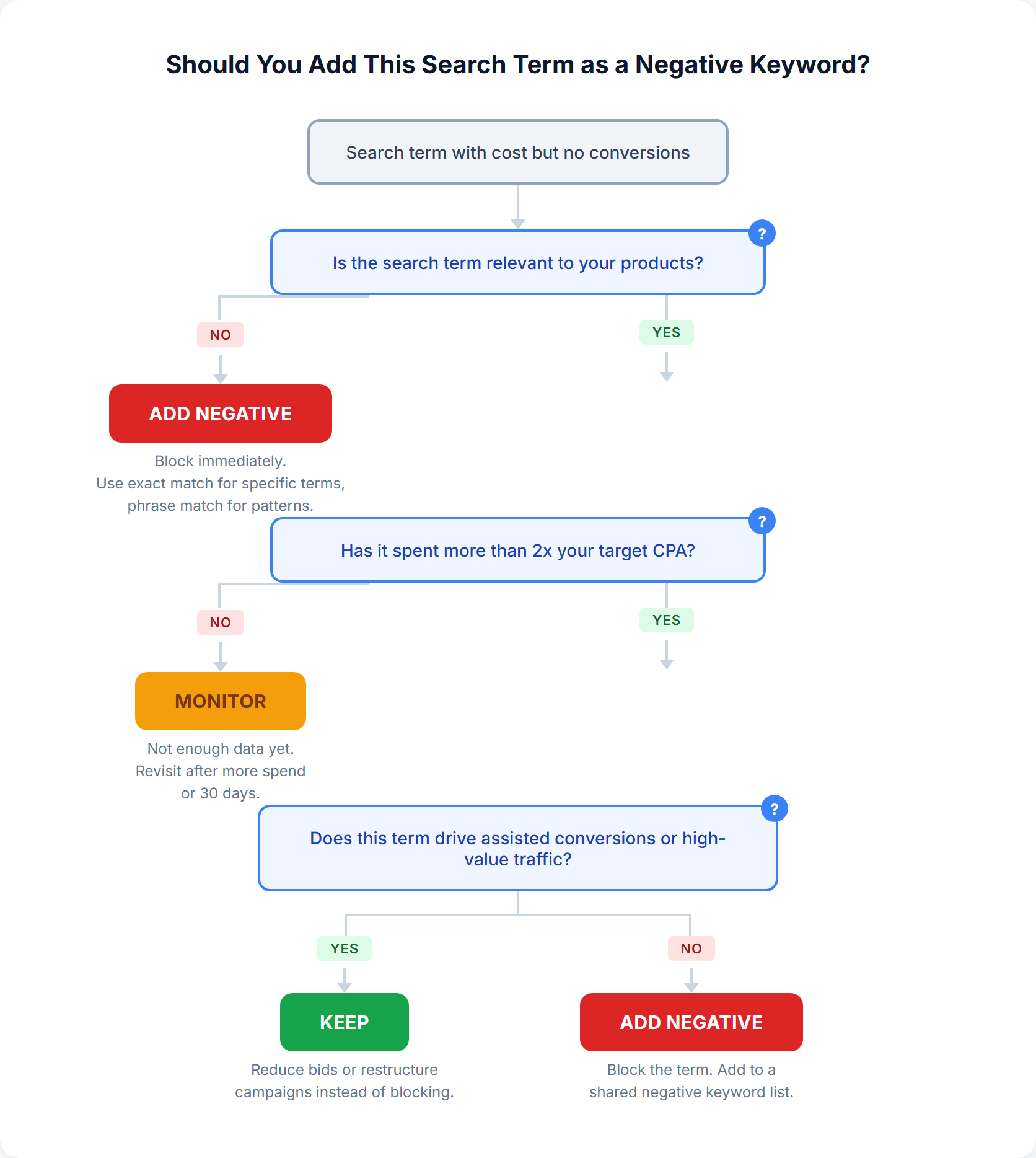
Finding waste is only half the job. You need a structured negative keyword strategy to prevent it from coming back. The right approach depends on your account structure and catalog size.
Shared Negative Keyword Lists
Create shared negative keyword lists in Google Ads (under Tools > Shared library > Negative keyword lists) and apply them across all your Shopping campaigns. Google's guide on negative keywords explains the match types and how they work at account, campaign, and ad group level. This is more efficient than adding negatives one campaign at a time and ensures consistent blocking. A detailed walkthrough of setting up and managing negative keywords is in our negative keywords guide.
Organize your lists by category for easier management:
- Universal blocklist: terms that never apply: "free," "DIY," "how to," "repair," "used"
- Competitor brands: competitor brand names you don't want to show for
- Category-specific: terms irrelevant to specific product groups
Match Type Selection
Choosing the wrong match type can either leave gaps or accidentally block good traffic:
- Exact match
[term]: blocks only that specific query. Use for terms that are wasteful on their own but where variations might be valid (e.g., block [shoes] but allow "running shoes") - Phrase match
"term": blocks any query containing that phrase. Use for universally irrelevant terms (e.g., "free" blocks "free shoes," "free shipping shoes," etc.) - Broad match: blocks queries containing the term in any order. Rarely recommended for Shopping negatives as it can be too aggressive
Important
Google Ads has a limit of 5,000 negative keywords per campaign and 5,000 per negative keyword list (with up to 20 lists). Plan your lists carefully. Focus on high-impact terms rather than trying to block every possible irrelevant query.
Search Term Analysis for Performance Max
Performance Max campaigns have notoriously limited search term visibility. Unlike standard Shopping campaigns where you can see individual queries, PMax groups search terms into themes and shows limited data. This makes waste harder to find, but not impossible.
What you can do in PMax:
- Insights tab: check "Search term insights" for grouped query themes. Look for themes with high spend and low conversions
- Account-level negatives: since early 2024, you can add account-level negative keywords that apply to PMax campaigns
- Google Ads API: for more granular data, the Google Ads Reporting API can extract search term data from PMax campaigns
- Brand exclusions: PMax allows brand exclusions to prevent showing on competitor or your own brand terms
If you're running both standard Shopping and PMax, the search term data from your Shopping campaigns often reveals patterns that apply to PMax too. A term wasting money in Shopping is likely wasting money in PMax as well. For a deeper comparison of these campaign types, see Shopping vs Performance Max.
How Often to Review Search Terms
Search term optimization isn't a one-time task. New irrelevant queries appear constantly as Google matches new searches to your products. The key is building a sustainable review habit.
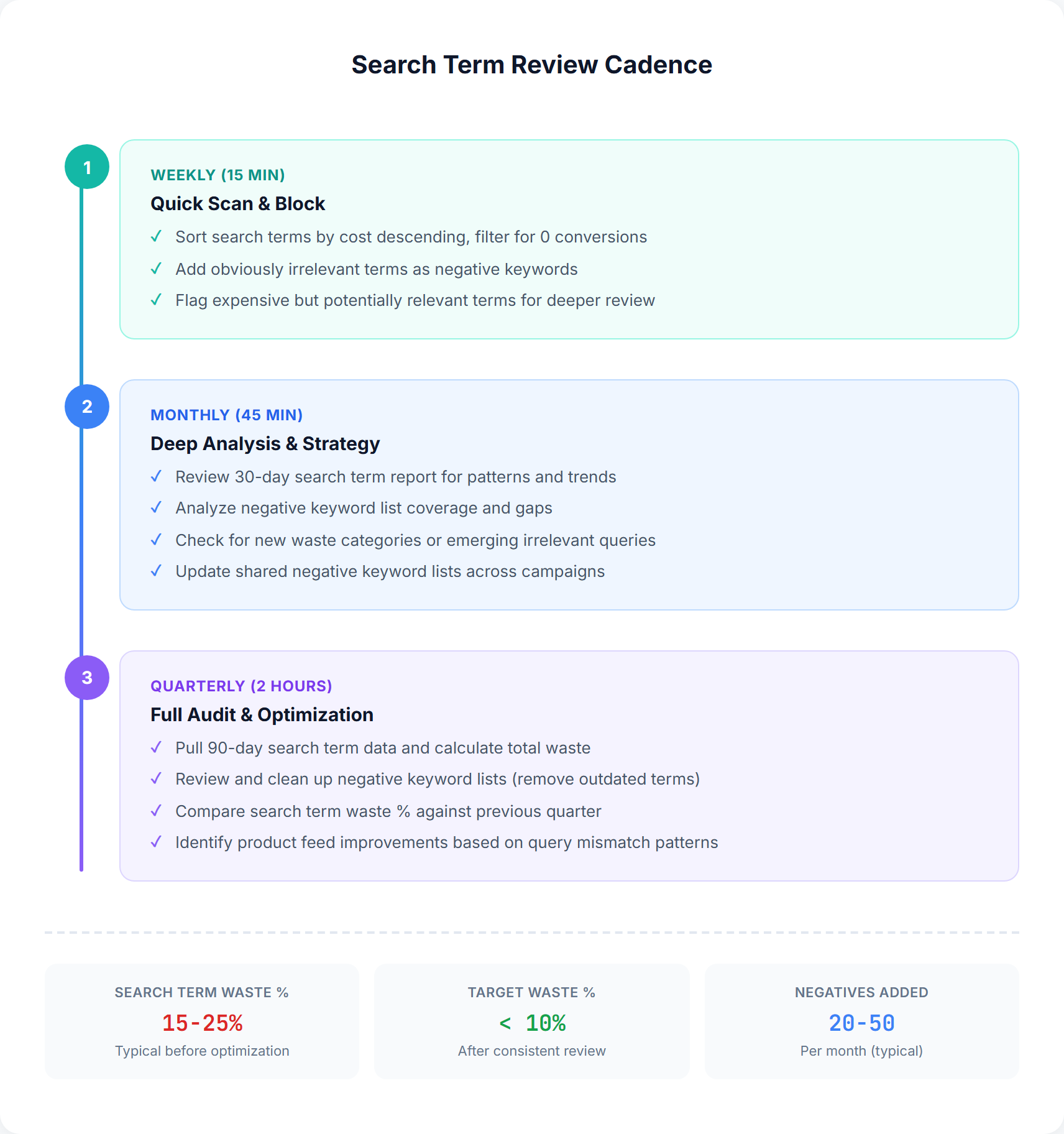
The weekly 15-minute scan catches the biggest offenders before they drain serious budget. The monthly deep dive finds patterns and updates your negative keyword lists. The quarterly audit measures progress and identifies structural improvements to your budget allocation based on what you've learned.
Track your search term waste percentage over time. If you're starting above 20%, expect to see it drop to 10-12% within the first month of active management, and below 10% within a quarter. WordStream's negative keyword research confirms that consistent negative keyword management is one of the highest-ROI optimizations for Shopping campaigns. Products that consistently attract bad search terms despite negative keywords may need feed improvements: better titles, more specific descriptions, or custom labels to segment them into separate campaigns.
Search term waste feeds other problems too. Products that attract lots of irrelevant clicks end up as low performers with inflated cost and poor ROAS visible in product analytics. Fixing the search terms often fixes the product metrics.
Search Term Waste FAQ
How do I see which products are wasting budget in Google Shopping?
Check the search term report in Google Ads (Campaigns > Insights and reports > Search terms). Sort by cost, then look for terms with high spend and zero conversions. These are the queries causing search term waste. You can also use the SKU Analyzer search terms page to automatically flag wasted search terms.
Can I see search terms for Performance Max campaigns?
PMax provides limited search term visibility. You can see grouped search themes in the Insights tab, but not individual queries like in standard Shopping. The Google Ads API and account-level negative keywords help bridge the gap.
How many negative keywords should I add per week?
It varies by account size. Most accounts add 20-50 negative keywords per month during active optimization. Focus on high-spend, zero-conversion terms first. The goal is reducing search term waste below 10% of total spend, not hitting a specific keyword count.
Should I use exact match or phrase match for negative keywords?
Use phrase match for universally irrelevant terms (e.g., "free," "DIY," "repair") that you want to block in all combinations. Use exact match when a specific query is wasteful but variations might be valid (e.g., block [shoes] but keep "running shoes").
What percentage of budget is typically wasted on bad search terms?
Before optimization, 15-25% of a typical Shopping budget goes to search terms that never convert. With consistent weekly review and negative keyword management, this can drop below 10%. Large catalogs with broad product types tend to have higher waste.
Conclusion
Search term waste is one of the most fixable, and most overlooked, problems in Google Shopping. Unlike product-level issues that may require feed changes or pricing adjustments, search term waste can be addressed immediately with negative keywords.
Key takeaways:
- Check the search term report weekly: 15 minutes of review can save hundreds in wasted spend
- Categorize waste by type: irrelevant queries, broad terms, competitor brands, wrong matches, and informational queries each need different strategies
- Use shared negative keyword lists: organized by category for consistent blocking across campaigns
- Track your waste percentage: aim to get below 10% of total spend on non-converting search terms
- Don't ignore Performance Max: use account-level negatives and the Insights tab to manage PMax search term waste
Every dollar you stop wasting on irrelevant search terms is a dollar that goes to queries that actually sell. Together with zero-conversion product management and low-performer optimization, search term analysis completes your waste elimination toolkit.