
Shopping campaigns don't let you choose the searches you show up for. Google reads your product feed and decides for you. Negative keywords are the one lever that points the other way: they're the only way to tell Google which searches you don't want.
That makes them genuinely useful and easy to overdo. The instinct after a first look at a search terms report is to block everything that didn't convert, and that instinct will quietly cost you money — a heavily negated account looks tidy in the report and underperforms in the auction. This guide covers how negatives actually match in Shopping, how to find the ones worth adding, where the ceiling is, and how to use brand exclusions to make the clicks you pay for more incremental.
How Negative Keywords Work in Shopping Campaigns
In Search campaigns you bid on keywords and your ads appear when someone searches them. Shopping inverts this. Google reads your feed — titles, descriptions, product types, attributes — and matches your products to queries on its own. You can't hand it a list of searches to target.
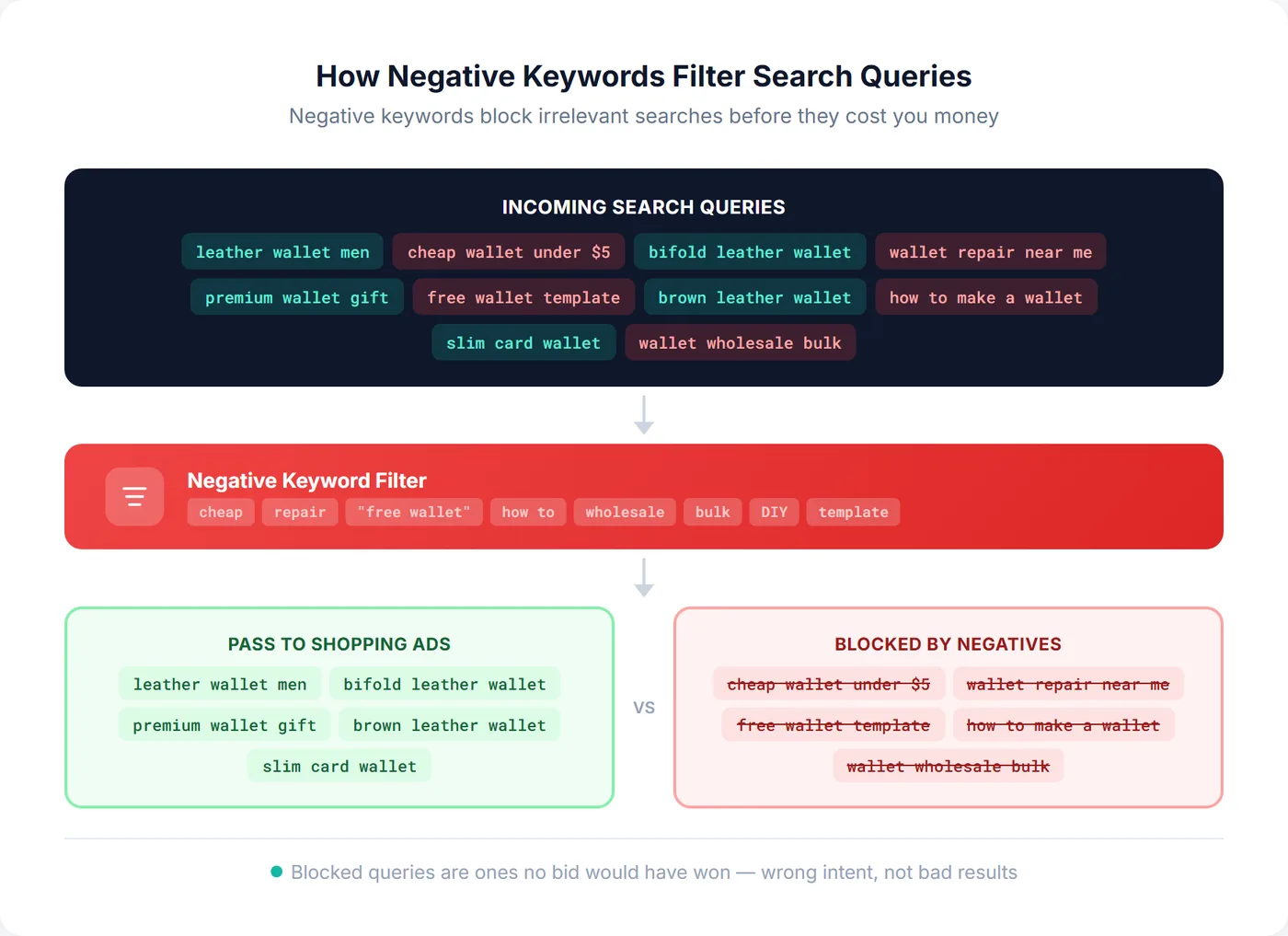
So the only direct control you have over query matching is subtractive. A negative keyword is a filter: any query matching it is blocked, and your products don't enter that auction. Everything else in Shopping query control is downstream of that one idea, including the brand-split strategy further down this page.
Example
You sell premium leather wallets. The word "wallet" in your titles is enough for Google to serve you on "cheap wallets" or "wallet repair". Adding "cheap" and "repair" as negatives keeps you out of both.
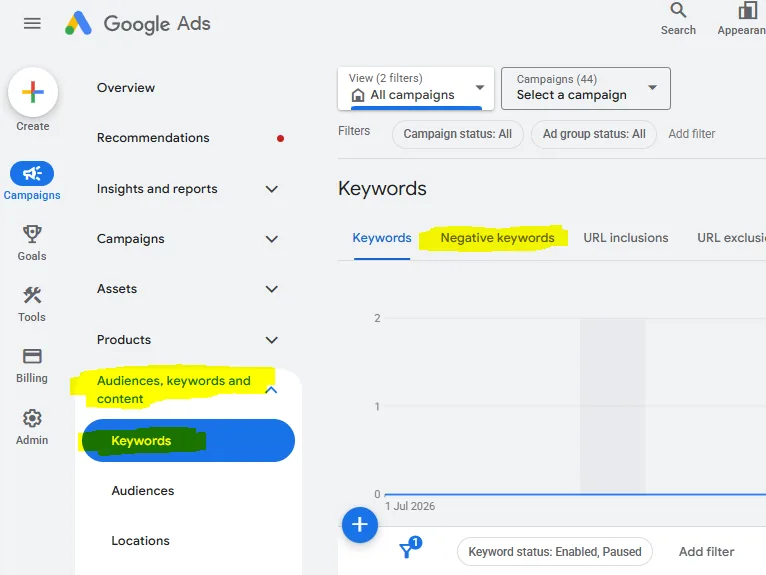
In Google Ads they live under Campaigns → Audiences, keywords and content → Keywords, on the Negative keywords tab — a level deeper than most people expect, which is part of why they get set once and never revisited.
They can sit at campaign level (all ad groups and products) or ad group level. Campaign level is enough for most advertisers. Ad group level earns its keep when different product categories need different treatment — for example if you've structured campaigns around budget allocation tiers.
Understanding Negative Match Types
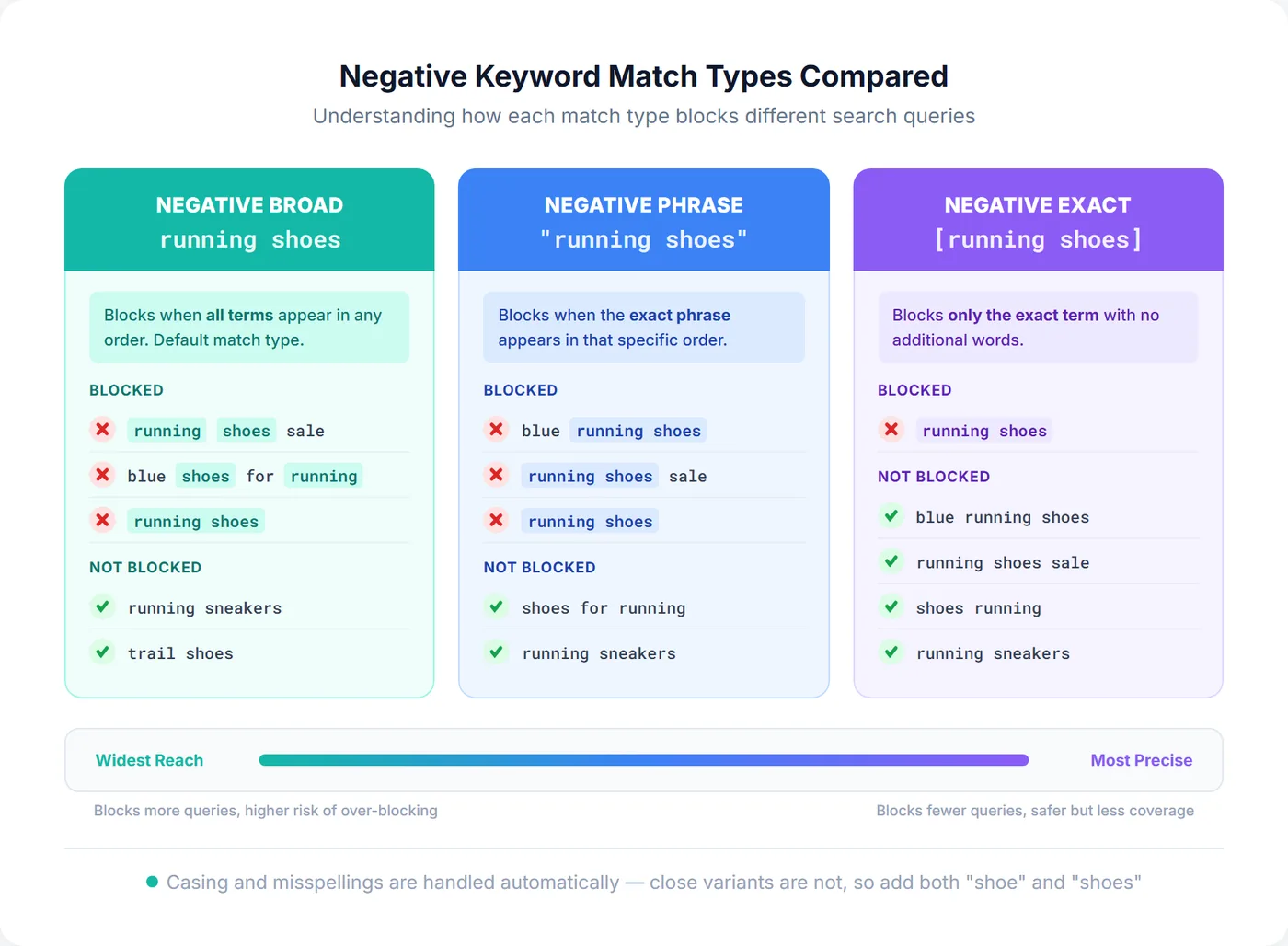
Negatives come in three match types, and the difference between them is the difference between blocking one query and blocking a whole category of traffic by accident. Using "running shoes" as the negative:
| Match type | Rule | Blocks | Doesn't block |
|---|---|---|---|
| running shoes Broad (default) |
All terms present, any order | running shoes shoes for running blue running shoes |
running sneakers trail shoes |
| "running shoes" Phrase |
Exact phrase, in order; extra words allowed | running shoes blue running shoes running shoes sale |
shoes for running running sneakers |
| [running shoes] Exact |
Only that query, nothing added | running shoes | blue running shoes running shoes sale shoes running |
The counterintuitive part: broad is the dangerous one on short negatives and the safe one on long ones. A broad negative needs every term present, so a three-word broad negative is quite narrow. A one-word broad negative like free blocks every query containing that word — including "free shipping", which is usually a buyer, not a browser. Single words belong in phrase or exact match.
The close-variant rule is narrower than most people think
Google's docs say negatives "automatically account for casing and misspellings, so you don't need to add those separately" — but they don't match close variants. So skip the misspelling permutations, and do add plurals and stems by hand: blocking "shoe" will not block "shoes".
Finding Candidates in the Search Terms Report
The Search Terms report (Google Ads → Insights and reports → Search terms) is where negatives come from. It lists the queries that actually triggered your ads. Set a date range of at least 30 days and sort by cost descending — the expensive terms are the only ones where a negative changes anything measurable.
Not every bad-looking term is a negative. The report gives you two genuinely different signals, and only one of them is a negative keyword problem:
- Wrong intent. The searcher wants something you don't sell — repairs, instructions, a job, a rental, wholesale quantities. No bid will fix this, because the click was never going to convert. This is what negatives are for.
- Right intent, bad result. A relevant query that spent money and didn't convert. This is a bidding, pricing, landing page, or product problem wearing a search term costume. Blocking it hides the symptom.
That second bucket is where most over-negating starts. A relevant query with 6 clicks and no sale isn't evidence of anything — it's a small sample. Read it alongside the products behind it: zero-conversion products and low performers produce exactly this pattern across otherwise fine queries, and the fix is at the product level. The wasted spend guide walks the full triage and covers where else the budget goes.
Key Takeaway
The first 30-60 days of a new campaign yield most of the real negatives, while Google is still working out what your feed means. After that the well runs dry, and continuing to mine it at the same rate is how accounts end up over-negated.
What Over-Negating Actually Costs You
Most negative keyword advice stops at "block irrelevant traffic" and never mentions a ceiling. There is one, and it moved. Under manual bidding, an unnecessary negative cost you the few sales that query would have made. Under Smart Bidding it also removes data the bidding model learns from, so the damage compounds. Three mechanisms, none of which appear as a line item in your account:
1. You exclude on samples too small to mean anything
A term with 8 clicks and no conversion isn't a losing term, it's an unfinished coin flip. As SavvyRevenue puts it, exclude everything in that bucket and "you're also throwing out terms that might have converted on their 11th click and become wildly profitable." Their rule: leave 0-10 click terms alone, treat 10-20 cautiously while you're growing.
2. You block queries that were fine in some contexts
A negative is absolute; Smart Bidding isn't. It can bid differently on the same query by device, time, audience, and the product matched. A term that loses money on mobile at €1.00 a click can make money on desktop at €0.25, and a term that's a disaster for one SKU can be a winner for another. A negative throws away that whole surface and replaces it with off.
3. You starve the bidding model
Every negative shrinks the pool of auctions the algorithm learns from. Do it enough and the account reads clean — every query in the report is relevant — while conversion volume drifts down and CPA drifts up. It's a slow failure with no obvious cause, which is why it survives so long.
Fewer than you'd expect
A healthy modern account is commonly put at 30-80 well-validated negatives, not the several hundred older guides recommend — including an earlier version of this one. SavvyRevenue's sanity check: excluded terms should be roughly 4-8% of spend. Well past that and you're managing a blocklist rather than a campaign.
So: add a negative when the intent is wrong, not when the result is bad. Wrong intent needs no sample size — a wallet retailer doesn't need 30 clicks to know "wallet repair near me" will never convert. Bad results do. Two habits keep it honest: check each new negative against your own feed, since a term in your product titles blocks your own products and title changes can reintroduce that collision months later; and once a year, delete the negatives you can no longer justify.
Brand Exclusions: Making Your Clicks More Incremental
There's one use of negatives that isn't about waste at all, and it's the one with the most money in it: separating your own branded searches from everything else.
Someone searching your brand name has already chosen you — they'd likely have found you anyway, via organic results, a bookmark, or your URL. That click mostly buys a customer you already had. Someone searching "leather bifold wallet" hasn't chosen anyone yet; that click is new demand. Both land in the same Shopping campaign, and by every metric Google reports, the first one looks better.
That's the trap. Branded queries convert well and cost little, so a blended campaign reports a flattering average belonging to neither group — and Smart Bidding reads that average as the truth about the whole campaign, spending non-brand budget at brand-like confidence. You overpay for customers you'd already won and underbid the ones you hadn't.
The split, and why priority does the work
Run two Standard Shopping campaigns over the same products and let Google's own routing separate the traffic:
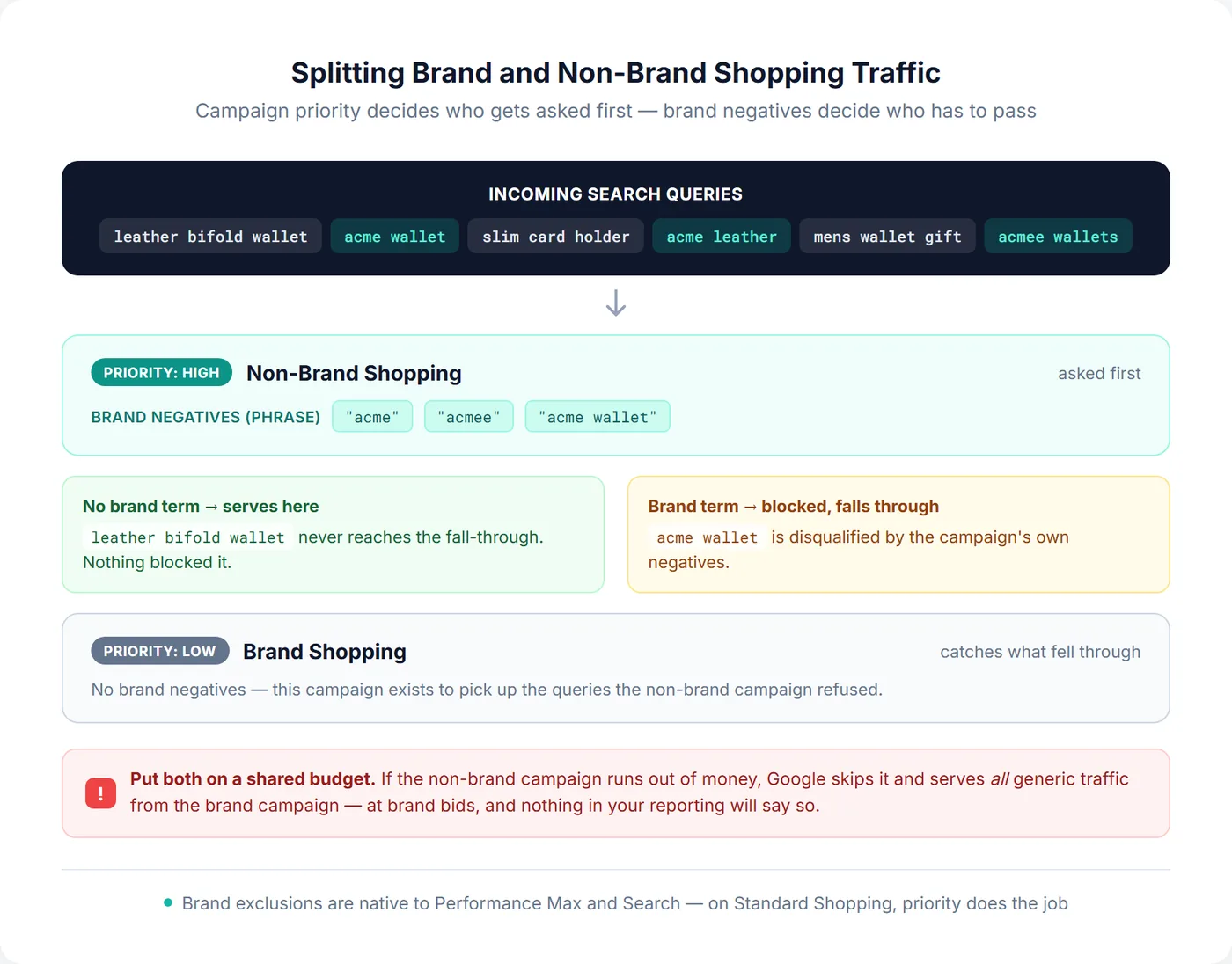
- Non-brand campaign — higher campaign priority, with every variation of your brand name added as phrase match negatives.
- Brand campaign — lower priority, no brand negatives.
Campaign priority isn't a bid modifier, it's a queue. Google tries the highest-priority campaign first. A branded query disqualifies the non-brand campaign via its own negatives and falls through to the brand campaign; a generic query never reaches the fall-through because nothing blocked it. The negatives aren't blocking traffic here — they're routing it. Exclude brand from the non-brand campaign rather than the reverse: your brand has a handful of spellings and typos, while non-brand queries are effectively infinite.
Put both campaigns on a shared budget
Priority only holds while the higher-priority campaign has budget. If the non-brand campaign runs dry, Google skips it and serves all generic traffic from your brand campaign — at brand bids, with brand expectations, and none of your reporting will say so. A shared budget makes both campaigns stop together and closes the hole. This is the single most common way the setup breaks.
What about the brand exclusions setting?
Google has a native brand exclusions feature that does this without the priority juggling — but not for Shopping. It covers Performance Max and Search, and campaign-level negatives came to PMax in January 2025 (raised to a 10,000-per-campaign limit that March). For Standard Shopping campaigns, brand lists still aren't supported. Search Engine Land reported them arriving in November 2025 and Google corrected the record two days later: not currently supported. So on Shopping, the priority split above is still the way, and if you run PMax alongside it, use PMax's brand exclusions or it will happily eat the same brand traffic.
Once split, the two campaigns finally tell you the truth: what your brand demand costs, what new demand costs, and whether the second number is one you'd pay again. That's the number that should drive budget — see measuring the branded vs non-branded split and the wider brand segmentation strategy for where to take it next.
Negatives Worth Adding Without a Sample Size
These are the wrong-intent categories — the ones where you can skip the data because no amount of it would change the answer. Keep them in shared negative keyword lists (Tools → Shared library) rather than per campaign, so one edit reaches every campaign instead of four.
| List | Examples | Watch out for |
|---|---|---|
| Non-commercial intent | how to, tutorial, DIY, homemade, repair, fix, jobs, salary | "review" — comparison shoppers are often close to buying |
| Wrong product | Adjacent categories you don't stock — "sleeve" if you sell laptop bags; "hiking" if you sell running shoes | Check against your feed first — these overlap with real titles most often |
| Wrong model | rental, lease, subscription, second hand, used, refurbished | Only if you genuinely don't offer them |
| B2B (for B2C sellers) | wholesale, bulk, supplier, distributor, OEM, white label | "bulk" can mean a multipack a consumer wants |
| Competitor brands | Rival brand names, phrase match | Skip if you sell compatible or alternative products — those searchers are the point |
Price modifiers deserve their own warning. "Cheap" and "discount" look like obvious blocks for a premium retailer, but they're intent signals about budget, not about seriousness — and a premium brand's own sale traffic uses them. Check the report before assuming.
Pro Tip
Pasting a batch of negatives in at once? Match types work inline: quotes for phrase ("free download"), brackets for exact ([wallet]). Anything unformatted defaults to broad — which, on a single word, is the one you almost never want.
Measuring the Impact
Note your baseline first, then compare the 30 days before to the 30 days after using the date comparison in Google Ads. CTR, conversion rate and ROAS should improve; impressions and clicks are the ones to watch nervously, because that's where over-blocking shows up.
Read the result carefully, though. Rate metrics improve automatically when you remove low-converting traffic, whether or not the change helped — CTR and conversion rate can rise while total profit falls, because you removed the denominator rather than the waste. Judge on conversion volume and profit alongside the rates, and remember last-click ROAS understates queries that assist, which is exactly what a hasty negative removes. Where margins vary, profit on ad spend is the better yardstick. Segmenting by product turns this from a guess into a diagnosis: product-level analytics show whether the weakness follows the query or a few bad SKUs behind it. If it's the SKUs, a negative was never the fix.
Frequently Asked Questions
Do negative keywords work in Google Shopping campaigns?
Yes, but differently than in Search campaigns. Shopping ads are triggered by your product feed rather than keywords you bid on, so negative keywords are the only direct control you have over query matching — they act as filters that keep your products out of searches you exclude. They can be added at campaign or ad group level.
What is the difference between negative broad and negative phrase match in Shopping?
Negative broad match blocks a search only when all the negative keyword's terms appear in it, in any order. Negative phrase match blocks searches containing the exact phrase in that order, with extra words allowed around it. Negative exact match blocks only the exact term with nothing added. Because broad match requires every term, a multi-word broad negative is narrow — but a single-word broad negative is the widest block available and the easiest way to lose good traffic.
How many negative keywords should I add to my Shopping campaign?
Fewer than most guides suggest. A healthy account under Smart Bidding typically runs somewhere around 30-80 well-validated negatives, not several hundred — each one removes auctions the bidding model learns from. A useful ceiling: excluded terms should account for roughly 4-8% of spend. If your blocklist is in the hundreds and growing every week, the problem is usually that bad results are being treated as wrong intent.
Can negative keywords hurt my Google Shopping performance?
Yes, and the damage is hard to see. Beyond the obvious risk of blocking valuable traffic with an over-broad term or one that appears in your own product titles, every negative shrinks the pool of auctions Smart Bidding learns from. An over-negated account looks clean in the search terms report while conversion volume falls and CPA rises. Excluding terms on small samples is the usual cause — a term with under 10 clicks and no conversion hasn't told you anything yet.
Can I use brand exclusions on a Standard Shopping campaign?
Not the native brand exclusions setting — that covers Performance Max and Search only. Reports in November 2025 that brand lists had arrived for Standard Shopping were corrected by Google two days later. To separate brand from non-brand in Shopping you still use two campaigns: a higher-priority non-brand campaign with your brand terms as phrase negatives, and a lower-priority brand campaign that picks up the queries which fall through. Put them on a shared budget, or the routing breaks the moment the non-brand campaign runs out of money.