Shopping Search Term Reports — Find Wasted & Winning Queries
Full search term visibility for both Standard Shopping and Performance Max campaigns. See exactly which queries trigger your ads, which ones waste budget, and how much of your spend goes to branded vs. non-branded traffic.
No signup required to explore the demo
Every Search Query in One Sortable Table
The Search Terms page displays every search query that triggered your Shopping or PMax ads within the selected date range. Each row shows the query text, cost, clicks, impressions, conversions, revenue, ROAS, and CPC. Every column is sortable.
Google Ads buries search term data behind multiple clicks and limits it by campaign. SKU Analyzer aggregates terms across all your Shopping and PMax campaigns into a single unified view, so you can find patterns that would be invisible when looking at one campaign at a time.
Sort by cost descending to see your most expensive queries. Sort by ROAS to find your highest-performing terms. The table is your starting point for building negative keyword lists and understanding what your customers actually search for.
- Unified view across Shopping and PMax campaigns
- Sort by cost, clicks, ROAS, conversions, or any metric
- Full query text, no truncation or sampling
- Data synced daily with 14-day lookback for conversion accuracy
Screenshot coming soon
Wasted Terms — Zero-Conversion Query Detection
The Wasted Terms tab isolates every search query that spent money but generated zero conversions. Irrelevant searches, competitor names, informational queries, and anything else that attracts clicks but not buyers. All in one filtered view.
Sort by cost and you have an instant negative keyword priority list. The top entries are pure waste: queries you're paying for that will never convert. Adding these as negatives is the fastest way to improve ROAS without changing bids or budgets.
Performance Max makes this data especially useful. Google gives you almost no control over which queries trigger PMax ads. You can't add negatives directly, but seeing the waste helps you set realistic ROAS targets and spot when PMax is spending on low-quality traffic.
- Dedicated tab for zero-conversion queries
- Sort by cost for an instant negative keyword priority list
- Covers both Shopping and PMax search terms
- Quantifies total wasted spend across all queries
Branded vs. Non-Branded Traffic Split
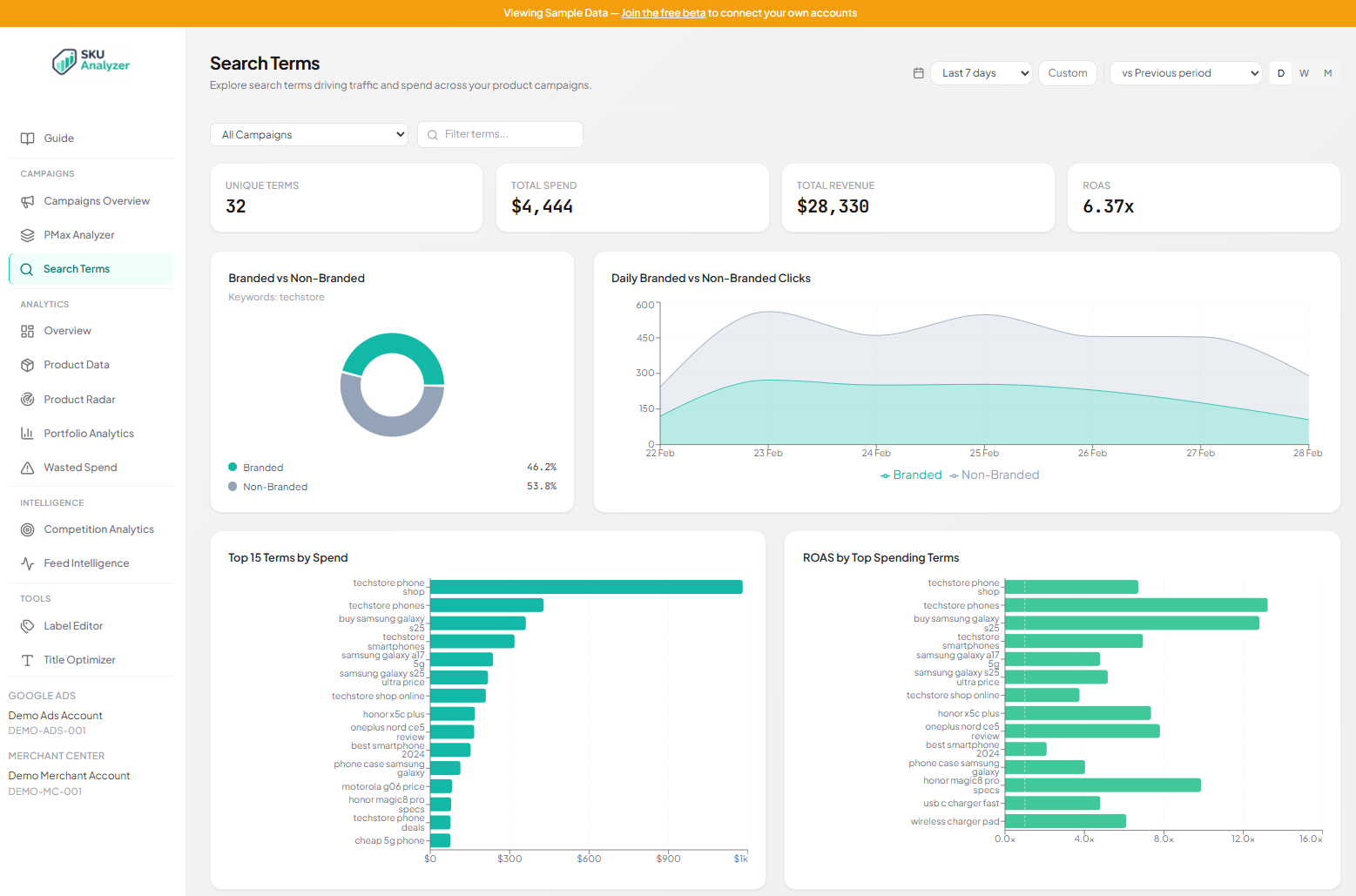
Define your brand keywords once, and SKU Analyzer automatically classifies every search term as branded or non-branded. A pie chart shows the spend split, and a daily stacked area chart reveals how the ratio changes over time.
Your branded vs. non-branded mix tells you where your Shopping budget actually goes. If 60% of your spend is on branded queries, you're mostly paying for traffic that was already looking for you. Not necessarily bad, but you should know, especially if your goal is customer acquisition.
Add your brand name and common misspellings as brand keywords in the Search Terms settings. The classification updates instantly and applies retroactively to all historical data, so you can see how the ratio has changed over any time period.
- Pie chart showing branded vs. non-branded spend split
- Daily stacked area chart of branded/non-branded trends
- Define up to 10 brand keywords with instant classification
- Retroactive classification across all historical data
Screenshot coming soon
Screenshot coming soon
Top Search Terms at a Glance
A horizontal bar chart ranks your top search terms by the metric you choose: cost, clicks, conversions, or revenue. You get an instant visual summary of where your budget concentrates at the query level, without scrolling through a table.
The bar chart makes outliers obvious. If one search term accounts for 15% of your total spend, it jumps right out. Combined with the table view, you get both the big picture and the detail on one page.
The chart follows your active campaign filter and date range, so you can drill into specific campaigns or time periods. Toggle between metrics to see which terms drive the most clicks vs. which actually convert.
- Horizontal bar chart of top terms by selected metric
- Toggle between cost, clicks, conversions, and revenue
- Instantly spot high-spend outlier queries
Filter by Campaign, Date Range, and More
A campaign dropdown narrows the entire page to a single Shopping or PMax campaign. The date range picker gives you flexible control: look at the last 7 days, 30 days, or any custom range up to 750 days of history.
Campaign filtering is essential when you need to audit a specific PMax campaign's search term quality, or compare query patterns between Standard Shopping and PMax. The table, bar chart, and branded analysis all update together when you change the filter.
Date range filtering helps you catch seasonal shifts in query patterns. Compare December search terms against January to see how holiday shopping changes what people search for, and whether your ads are matching the right intent.
- Campaign dropdown for Shopping and PMax campaigns
- Custom date range up to 750 days of history
- All charts and tables respect active filters
Screenshot coming soon
Frequently Asked Questions
Does SKU Analyzer show search terms from Performance Max campaigns?
Yes. SKU Analyzer pulls search term data from both Standard Shopping and Performance Max campaigns. PMax search terms are notoriously hard to access in Google Ads, but SKU Analyzer surfaces them in the same table alongside Shopping terms.
How does the wasted terms detection work?
The Wasted Terms tab filters search terms that have accumulated spend but generated zero conversions within the selected date range. You can sort by cost to see which non-converting queries are costing you the most, making it easy to build negative keyword lists.
What is branded vs non-branded analysis?
You define your brand terms (e.g., your brand name and common misspellings), and SKU Analyzer classifies every search term as branded or non-branded. It then shows a pie chart of spend split and a daily stacked area chart so you can see how much budget goes to brand defense vs. prospecting.
Can I filter search terms by campaign?
Yes. A campaign filter dropdown lets you narrow the table to a specific Shopping or PMax campaign. You can also filter by date range. The table, top terms chart, and branded/non-branded analysis all respect your filter selections.
Stop wasting budget on bad queries
Explore search term reports with sample data, or apply for early access to connect your own account.