
Product images are the first thing shoppers see when scanning Google Shopping results. Before they read your title, check the price, or notice the seller, the image either grabs their attention or gets scrolled past. Yet images are also one of the most common reasons products get disapproved in Google Merchant Center.
This guide covers everything about Google Shopping image requirements: the exact technical specifications, what Google allows and prohibits, the most common rejection reasons with step-by-step fixes, category-specific rules, and a practical optimization workflow. Whether you are setting up your first feed or auditing an existing catalog with thousands of SKUs, you will find actionable guidance here.
Google's Official Image Requirements
Google defines two categories of image rules: technical specifications that determine whether your image can be processed, and editorial policies that determine whether it will be approved. Start with the technical specs.
Minimum and Recommended Dimensions
Image dimension requirements currently depend on your product category, but that is about to stop being true. According to Google's image_link documentation, these are the minimums in force today — and the single minimum that replaces them on January 31, 2027:
| Category | Minimum today | Minimum from Jan 31, 2027 | Google recommends |
|---|---|---|---|
| Non-apparel | 100 x 100 px | 500 x 500 px | 1500 x 1500 px+ |
| Apparel | 250 x 250 px | 500 x 500 px | 1500 x 1500 px+ |
| YouTube Shopping | 500 x 500 px | 500 x 500 px | 1500 x 1500 px+ |
| Upper limits | 64 megapixels max resolution, 16 MB max file size | ||
The apparel split disappears on January 31, 2027
Google is retiring the separate apparel and non-apparel minimums in favour of 500 x 500 pixels for every product, per the 2026 product data specification update. Merchant Center has been flagging undersized images since April 14, 2026 with the warning Image too small for upcoming enforcement, visible under Needs attention. Those products still serve today and will be disapproved after the cutover, so the warning is a deadline rather than an error. A catalogue built to the old 100 x 100 floor is the one most exposed here: an image that has been legal for years can fail overnight without anything about it changing.
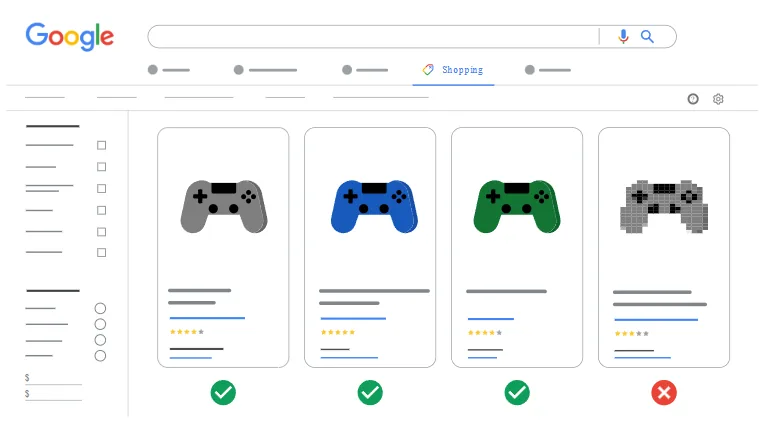
Aim well above the floor. Google now recommends around 1500 x 1500 pixels or above to perform across every listing format, which is roughly double the guidance most older feed checklists still repeat. That headroom matters on high-density mobile screens, the Shopping tab, and newer surfaces like shopping ads in AI Mode, where the same image gets rendered at sizes nobody designed for. Meeting the 2027 minimum exactly is enough to serve; it is not enough to look good.
File Size and Formats
Google accepts six image formats: JPEG, PNG, GIF (non-animated), WebP, BMP, and TIFF. The maximum file size is 16 MB. In practice, most merchants use JPEG for standard product photography and PNG when transparency or very sharp edges are needed.
Your image URL must start with http:// or https://, comply with RFC 3986, and be accessible to Googlebot-image. If your robots.txt blocks crawlers from your image directory, Google cannot process your images and they will be treated as missing. This is a surprisingly common issue; see the feed errors guide for more details on crawl-related problems.
Framing and Aspect Ratio
Google recommends that the product fill 75% to 90% of the image frame. Too much whitespace makes the product appear small in Shopping results; too little cropping can cut off parts of the product. A square aspect ratio (1:1) works best for consistency across placements, though it is not strictly required.
Pro Tip: Additional Images
You can submit up to 10 additional images per product using the additional_image_link attribute. Use these for alternate angles, close-ups, lifestyle shots, and scale references. Products with multiple images give shoppers more confidence and tend to have higher engagement rates.
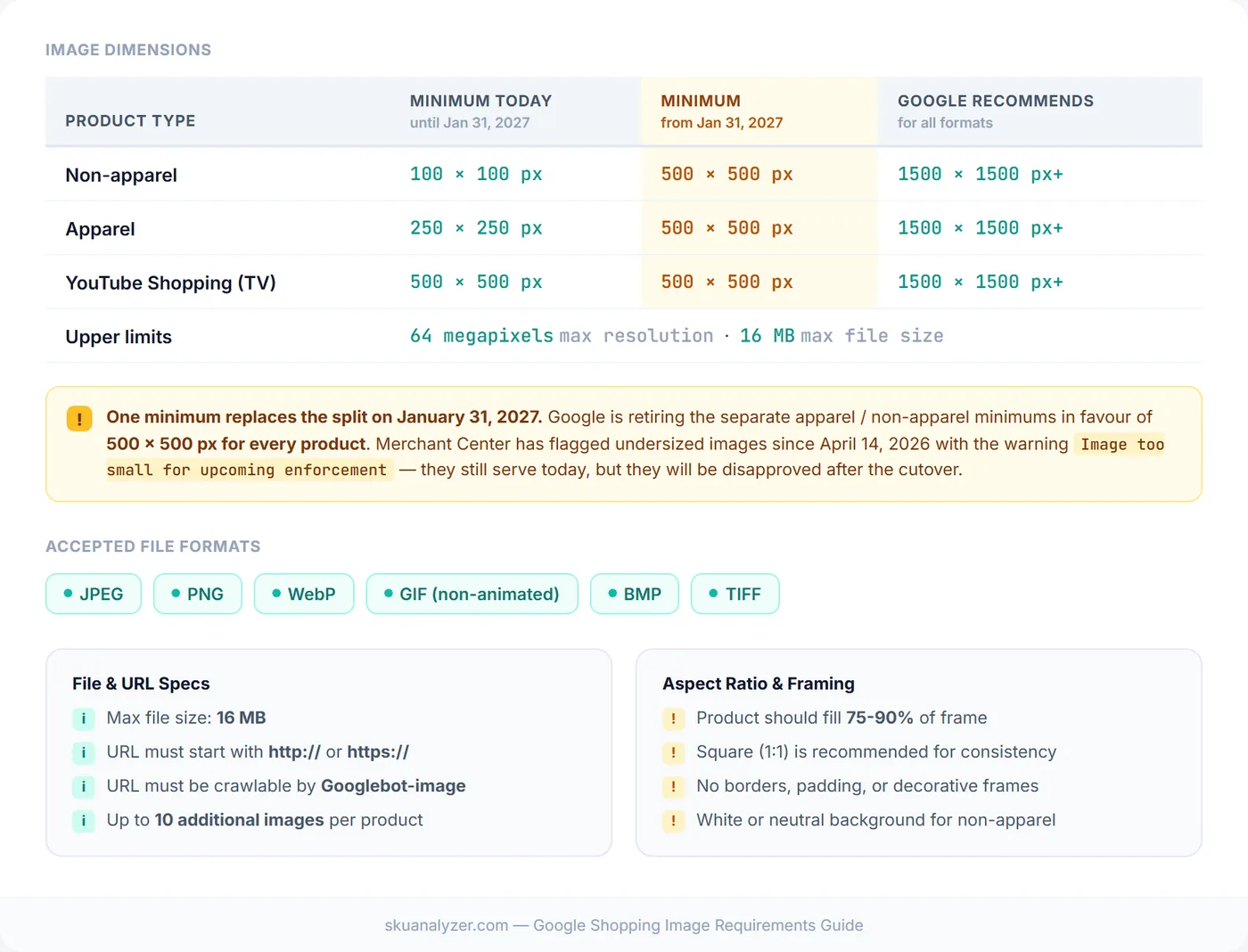
Image Policies: What Google Allows and Prohibits
Beyond technical specs, Google enforces editorial policies on image content. Violating these policies results in product disapprovals. Understanding them is essential for maintaining a healthy product feed. A feed intelligence tool can help you catch image issues alongside other feed problems.
What Is Prohibited
- Promotional text overlays: Any text on the image like "SALE", "20% OFF", "Free Shipping", "Buy One Get One", or price callouts. Google wants images to show the product, not marketing messages. Note: Google's own Asset Studio tool (launched 2025) now generates these overlays automatically — the enforcement picture has become more nuanced than a blanket ban.
- Watermarks and logos: Store logos, brand watermarks, or any graphic elements placed over the product. The product must be shown with an unobstructed view.
- Placeholder or generic images: Stock photos that do not show the actual product, "no image available" graphics, or illustrations used as substitutes for real product photography.
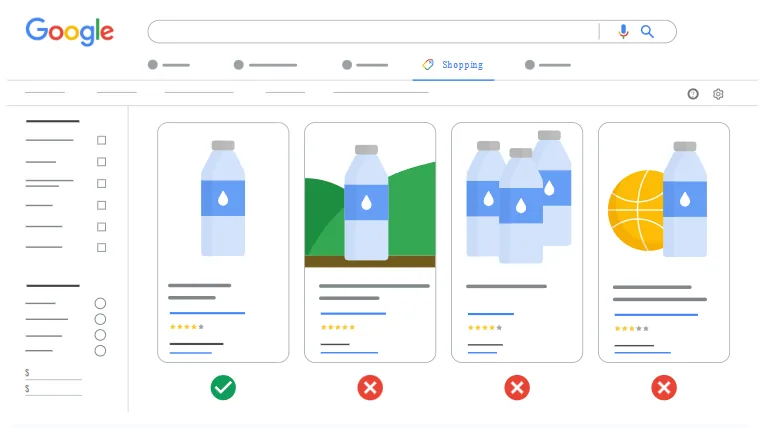
- Borders and decorative elements: Colored frames, gradient borders, or styled edges around the image.
- Misleading images: Images that show a different product, wrong color variant, or an item that does not match the product data in the listing.
What Is Recommended
- White or neutral backgrounds: For non-apparel products, a clean white or light gray background is strongly preferred. This ensures the product stands out and looks consistent in Shopping results.
- Product-focused composition: Show only the listed product. Avoid group shots or scenes with multiple unrelated items.
- Accurate representation: The image must match the specific variant listed, including correct color, size, and packaging.
- Lifestyle images for apparel: Clothing shown on a model or mannequin typically performs better than flat-lay photography. Google encourages lifestyle-style images for apparel categories.
Automatic Image Improvements
Google offers an automatic image improvements feature that can attempt to remove promotional overlays from your images. While useful as a safety net, it does not catch everything. It is far better to submit clean images from the start.
Common Image Rejection Reasons and How to Fix Each
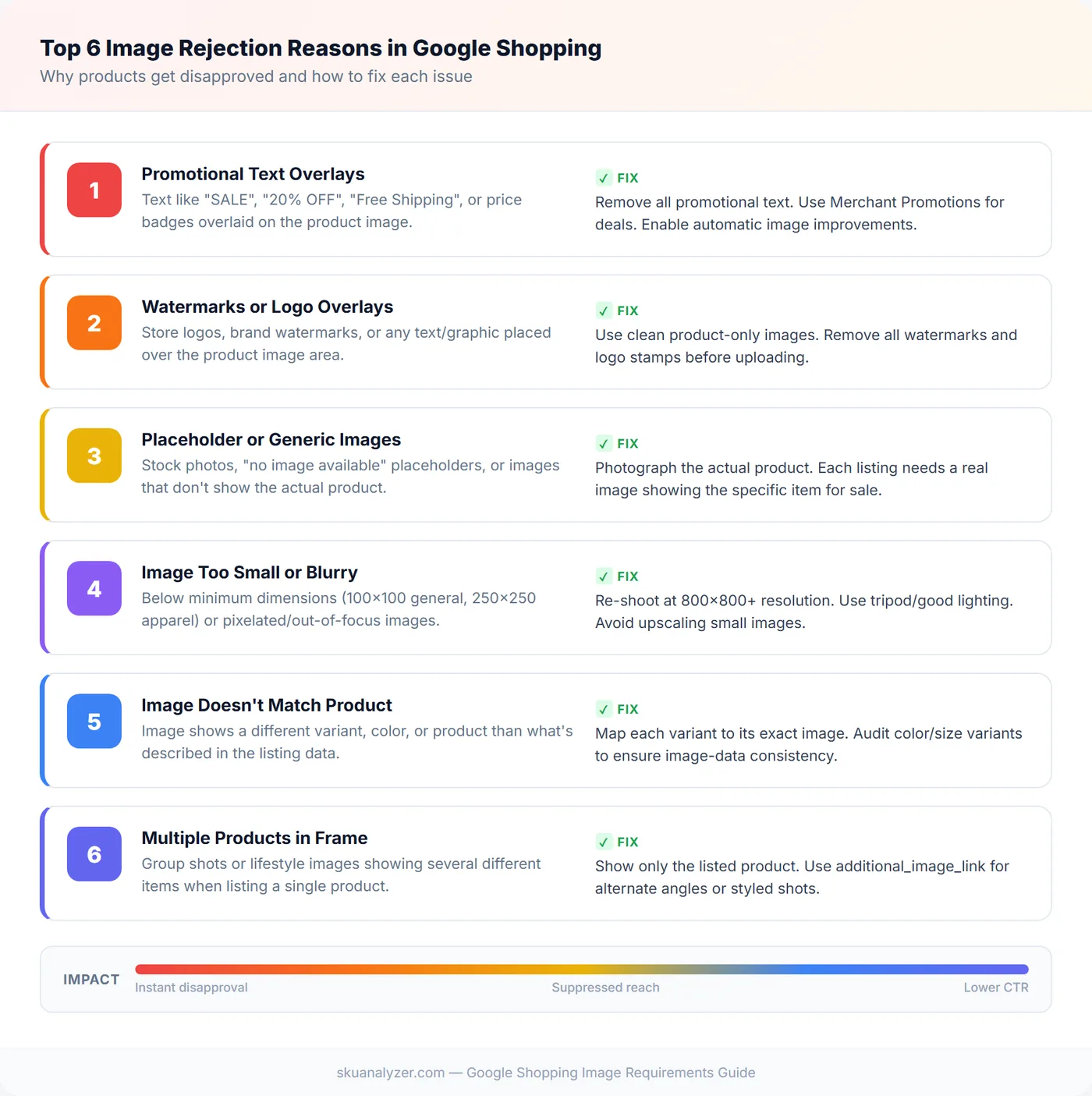
Image-related disapprovals are among the most frequent issues in Merchant Center. Based on industry data and common patterns, image problems account for a large portion of all data errors that cause Shopping disapprovals. Here are the top reasons Google rejects product images and how to resolve each one.
1. Promotional Text Overlays
2025 Update: Enforcement Has Shifted
Google's image overlay policy has become more nuanced. Google now runs its own Asset Studio tool (launched at Google Marketing Live 2025) that auto-generates promotional overlays on Shopping images — the same type the policy technically prohibits in feeds. Enforcement has relaxed, but the formal policy still exists. Full guide: Google Shopping Image Overlays: What's Now Allowed After Google's 2025 Policy Shift.
The problem: Images contain text like "SALE", "NEW", percentage discounts, or price badges. This is historically the single most common image policy violation.
How to fix it: Remove all text from your product images submitted via image_link. If you want to promote deals, use Google Merchant Promotions instead, which display as special annotations alongside your ads. Alternatively, test Google's Asset Studio to have Google generate overlays on your behalf — this approach carries no disapproval risk since Google applies them directly. Enable automatic image improvements in Merchant Center as an additional safety measure.
2. Watermarks or Logo Overlays
The problem: Store logos, photographer watermarks, or brand stamps are placed on the product image to prevent copying or for branding purposes.
How to fix it: Use clean, watermark-free versions of your product images. If image theft is a concern, protect your images through other means (DMCA, copyright registration) rather than watermarking. Google views watermarks as obstructing the product view.
3. Placeholder or Generic Images
The problem: The image does not show the actual product. This includes generic stock photos, manufacturer logos used as product images, or "image coming soon" placeholders.
How to fix it: Photograph every product you sell. For new products where photography is pending, wait until you have real images before submitting the product to your feed. Submitting products without real images not only gets them disapproved but can also hurt your overall feed quality score.
4. Image Too Small or Blurry
The problem: The image falls below the minimum dimension requirements (100x100 for non-apparel, 250x250 for apparel today, 500x500 for everything from January 31, 2027) or is pixelated, out of focus, or poorly lit.
How to fix it: Re-photograph the product at a higher resolution, targeting Google's recommended 1500x1500 rather than the bare minimum. Use a tripod and proper lighting. Avoid upscaling small images, as this creates visible pixelation and solves nothing: the pixel count passes while the image still looks like the rejected listing above. This is also the disapproval to watch most closely, because it is the one the 2027 change creates out of nothing. A product sitting at 300x300 is approved today and disapproved after the cutover without a single thing about it changing.
5. Image Does Not Match the Product
The problem: The image shows a different variant (wrong color, size, or model) than what is described in the product data. This happens frequently with variant products where all variants share the same parent image.
How to fix it: Map each product variant to its specific image. If you sell a t-shirt in five colors, each color variant needs its own image showing that exact color. Audit your feed to ensure image-to-data consistency. Tools like feed management platforms can help automate this mapping.
6. Multiple Products in a Single-Product Listing
The problem: The image shows a group of products or accessories when the listing is for a single item. This confuses shoppers about what they are purchasing.
How to fix it: Use an image that shows only the product being sold. If the product is a set or bundle, make sure the listing title and description clearly indicate it is a multi-item pack. For additional context, use the additional_image_link attribute to show accessories or styled arrangements.
Category-Specific Image Rules
Different product categories have different expectations for images. While the core policies apply universally, Google and shoppers expect certain standards depending on what you sell. Assigning the correct product category also helps Google understand what image standards apply.
Apparel and Fashion
Apparel currently has the strictest image requirements: a 250x250 pixel minimum, against 100x100 for other categories. That distinction disappears on January 31, 2027, when both move to 500x500 and apparel stops being a special case on dimensions, though Google's 1500x1500 recommendation is the number worth building to. Lifestyle images showing the product on a model or mannequin perform significantly better than flat-lay shots. Showing the full garment without cropping is essential. Include images from multiple angles and use additional images to show fabric texture, fit details, and back views.
Electronics and Technology
Clean product-on-white images work best for electronics. Show the product powered off (no screens with active content that could be confused with product features). Include the product from the front, showing key physical features. Additional images should show ports, included accessories, and scale references. Model numbers in product titles paired with clear images help shoppers verify they are looking at the right item.
Home and Garden
For furniture and home decor, the main image should show the product on a white or neutral background. Lifestyle images showing the product in a room setting make excellent additional images. Always convey scale, either through context or by noting dimensions in the description. For multi-piece sets, show all included pieces in the main image if the listing is for the complete set.
Food and Grocery
Product packaging should be clearly visible. Show the front of the package with the label readable. For fresh or prepared foods, show the actual food item, not just the packaging. Including weight, count, and size information in both the image context and the product data helps reduce returns and improves shopper confidence.
Beauty and Personal Care
Show the product packaging clearly, including the brand name and product line on the label. For cosmetics, swatches and color samples are valuable as additional images. Accurate color representation is critical in this category since slight differences in shade can affect purchase decisions.
Image Optimization Best Practices
Meeting the minimum requirements gets your images approved, but optimization is what drives better performance. Here are practical steps to get the most out of your product images for Shopping ad optimization.
File Compression Without Quality Loss
Large image files slow down crawling and can cause timeouts. Compress your images to reduce file size while maintaining visual quality. JPEG at 80-85% quality offers an excellent balance for product photography. WebP format can achieve even smaller file sizes with comparable quality. Aim to keep images under 2 MB while maintaining sharpness.
Background Removal and Consistency
For non-apparel products, a pure white background (#FFFFFF) creates the cleanest appearance in Shopping results. Tools like remove.bg or Adobe's background removal can automate this process. Consistency across your catalog makes your brand look professional and helps your products stand out in the competitive Shopping carousel. Feed management platforms like Feedonomics can also help enforce image standards at scale.
Mobile-First Image Considerations
The majority of Shopping ad impressions now come from mobile devices. Your product images need to be clear and recognizable at small display sizes. This means:
- The product should fill most of the frame (no tiny product in a sea of whitespace)
- Key features should be visible without zooming
- Text on the product (like labels) does not need to be readable, but the product itself must be identifiable
- Test how your images look on a phone-sized Shopping result before finalizing
Lifestyle vs. White Background: When to Use Each
White backgrounds are preferred for the main image in most categories and tend to look more consistent in search results. However, lifestyle images (product in context) can be highly effective as additional images and sometimes outperform white backgrounds for the primary image in categories like apparel, home decor, and outdoor equipment. Test both approaches for your top products and measure CTR differences.
Key Takeaway: Images and CTR
Image quality directly impacts click-through rate in Shopping ads. Products with high-resolution, well-lit images on clean backgrounds consistently outperform products with low-quality or policy-violating images. Improving your images is one of the highest-ROI activities for ROAS improvement, especially for products that already get impressions but have below-average CTR.
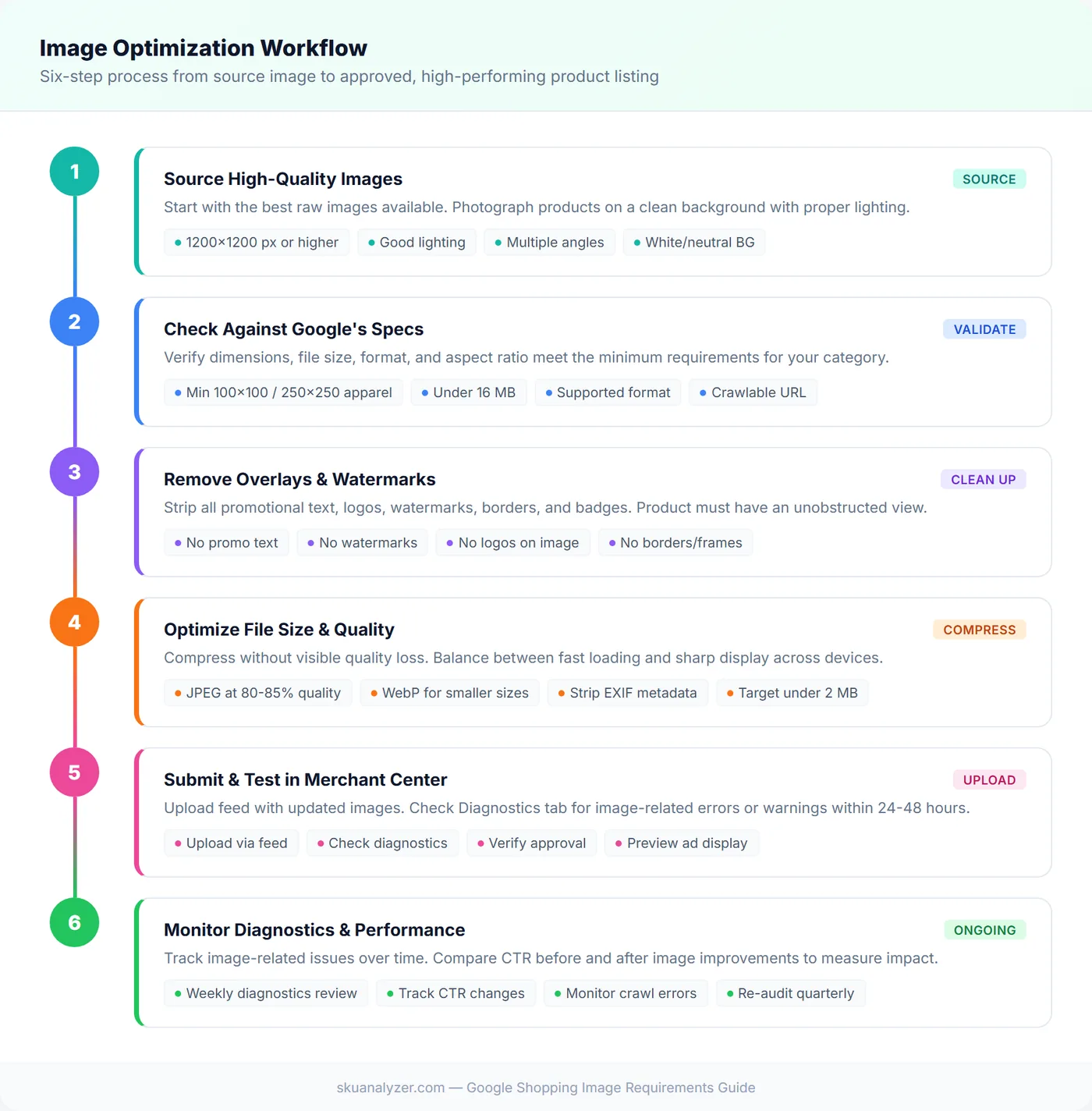
How to Monitor Image Issues in Merchant Center
Fixing images once is not enough. New products, feed updates, and policy changes can introduce new issues at any time. Here is how to stay on top of image health in your account.
The Diagnostics Tab
In Merchant Center, navigate to Products > Diagnostics to see all active issues. Filter by "Image" to isolate image-specific problems. Common diagnostics include "Image too small", "Promotional overlay on image", and "Missing image". Each diagnostic links to specific affected products so you can fix them in bulk.
Image Crawl Errors
If Google cannot access your image URLs, you will see crawl errors in the diagnostics. Common causes include broken image links after site migrations, CDN configuration issues blocking Googlebot-image, rate limiting that prevents Google from fetching images, and robots.txt rules that inadvertently block the image directory. Check Merchant Center analytics regularly for crawl status trends.
Item-Level Issues
For individual products, click into the product detail in Merchant Center to see item-specific issues. This view shows the exact image Google has crawled and any problems detected. It is particularly useful for debugging variant-specific image mismatches where one color variant might have the wrong image mapped.
Setting Up Alerts
Merchant Center can send email notifications when new issues appear. Enable these alerts so you catch image problems quickly rather than discovering them weeks later when performance has already been affected. For larger feeds, consider tracking disapproval rates over time in your analytics dashboard. Tools like SKU Analyzer can surface performance changes at the product level, helping you correlate image updates with CTR and impression share movements.
Regular Audit Schedule
Review your Merchant Center diagnostics weekly for new image issues. Conduct a full image audit quarterly, especially after catalog expansions or website redesigns. Cross-reference image quality with product performance data to prioritize which images to improve first. For broader feed health, see the feed optimization guide.
Frequently Asked Questions
What is the minimum image size for Google Shopping?
Today it depends on the category: 100 x 100 pixels for non-apparel and 250 x 250 pixels for apparel. That split ends on January 31, 2027, when Google enforces a single minimum of 500 x 500 pixels for every product. Merchant Center has already been flagging undersized images since April 14, 2026. Both floors are far below what Google actually recommends, which is around 1500 x 1500 pixels or above for good performance across all listing formats.
Will my current images stop working in 2027?
Only the ones below 500 x 500 pixels, and only after January 31, 2027. Until then they keep serving normally. The catalogues most exposed are the ones built years ago to the 100 x 100 floor, because an image that has been approved since launch can be disapproved overnight without anything about it changing. Check the Needs attention section in Merchant Center for the warning "Image too small for upcoming enforcement" to see which products are affected while there is still time to re-export them.
Can I use lifestyle images for Google Shopping product listings?
Yes, but with conditions. The main product image (image_link) should show the product clearly, ideally on a white or neutral background for non-apparel items. Lifestyle images work well for apparel and are encouraged there. You can use the additional_image_link attribute to add up to 10 lifestyle or alternate-angle images per product.
Why are my product images getting disapproved in Merchant Center?
The most common reasons for image disapproval include promotional text overlays (sale badges, discount text), watermarks or logos on the image, placeholder or generic stock photos, images that are too small or blurry, images that don't match the listed product variant, and showing multiple products in a single-product listing. Check the Diagnostics tab in Merchant Center for specific error details.
What image file formats does Google Shopping accept?
Google Shopping accepts JPEG, PNG, GIF (non-animated), WebP, BMP, and TIFF formats. The maximum file size is 16 MB. JPEG is the most common choice for product photography due to its balance of quality and file size, while PNG is useful for products that need transparency or very sharp edges.
How many product images can I submit to Google Shopping?
You can submit one main image via image_link and up to 10 additional images per product using the additional_image_link attribute. Using multiple images is recommended as it gives shoppers more views of the product and can improve engagement. Additional images can include lifestyle shots, close-ups, alternate angles, and packaging views.